How to order
Here below is explaination for the different ways of ordering |
|
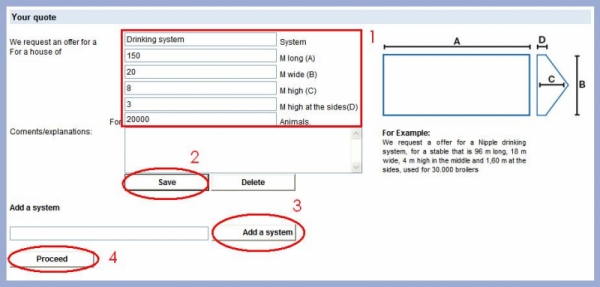
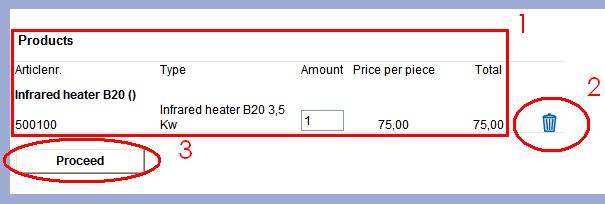
There are three ways to order from the agromax site, use the one that you are comfortable with. 1. Cart/Offer: If you don't want to browse the site, or need a specific order. For more information view the pictures below 2. Specific product: if you want to buy a complete system. For more information view the pictures below 3. Specific article: If you want to buy a specific article and not the whole system scroll down to where the Articles are located. When you mouse over articles they become highlighted, then press the shopping cart located right of the articles price. this is now placed in your Cart. If you want more then 1 of the selected article, Click the "To Offer" button that pops up on your screen, there you can fill in the desired number of the article. For more information view the pictures below
1 |
|
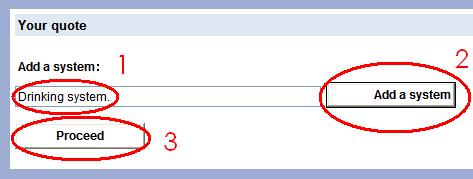
This is the Cart/Offer with nothing in it yet. 1. Filling in, select this text bar with your mouse, and fill in the desired system that you desire. It can always be removed/edited later. 2. Add a System, this button adds the system you just filled in to the your Quote. if you do not click this button the system that you just filled in will not go to your your Quote. 3. Proceed, Once you added the desired system(s) you can proceed to the next form by clicking this button. The next form is in the picture below.
2 |
|
Your data
|
|
Here you have to fill in all your personal data required for us to contact you, and to send your order to its destination. 1. Personal Data, Please fill in your Relation number, and al other fields. These are required for us to send you your products. 2. Fields marked with *, These fields are required, if nothing is filled in then your order is not valid. If you do not poses one of the data we require please type in "not available". 3. Personal Data, Please fill in your country, and al other fields. These are required for us to send you your products. 4. Send, this finalises the order, and it will be sent to the Agromax sales department. 5. Print, click this button to print the order. |